How to Generate a Summary Report for All Your Events as an Event Admin
As an Event Admin in PheedLoop, you may need to analyze data across multiple events to track performance, compare metrics, or prepare comprehensive reports for stakeholders. To help you accomplish this task, PheedLoop offers the Event report type that aggregates data from all your events in one exportable view.
Available in the Membership Dashboard, this report includes over 40 standard fields covering essential event information, including advanced settings such as tracking IDs, capacity configurations, and revenue data. Any custom fields your organization has created will also be available for exporting, ensuring you capture all relevant data specific to your needs.
The Event Report includes an Event Status setting that allows you to filter events by whether they are upcoming, ongoing, or past. Alternatively, you can use the "Start Date After" and "End Date Before" fields to define custom date ranges for more precise reporting.
This guide will walk you through how to access and generate the Event Report, configure your field selections, and export your data for analysis.
Creating the Event Report
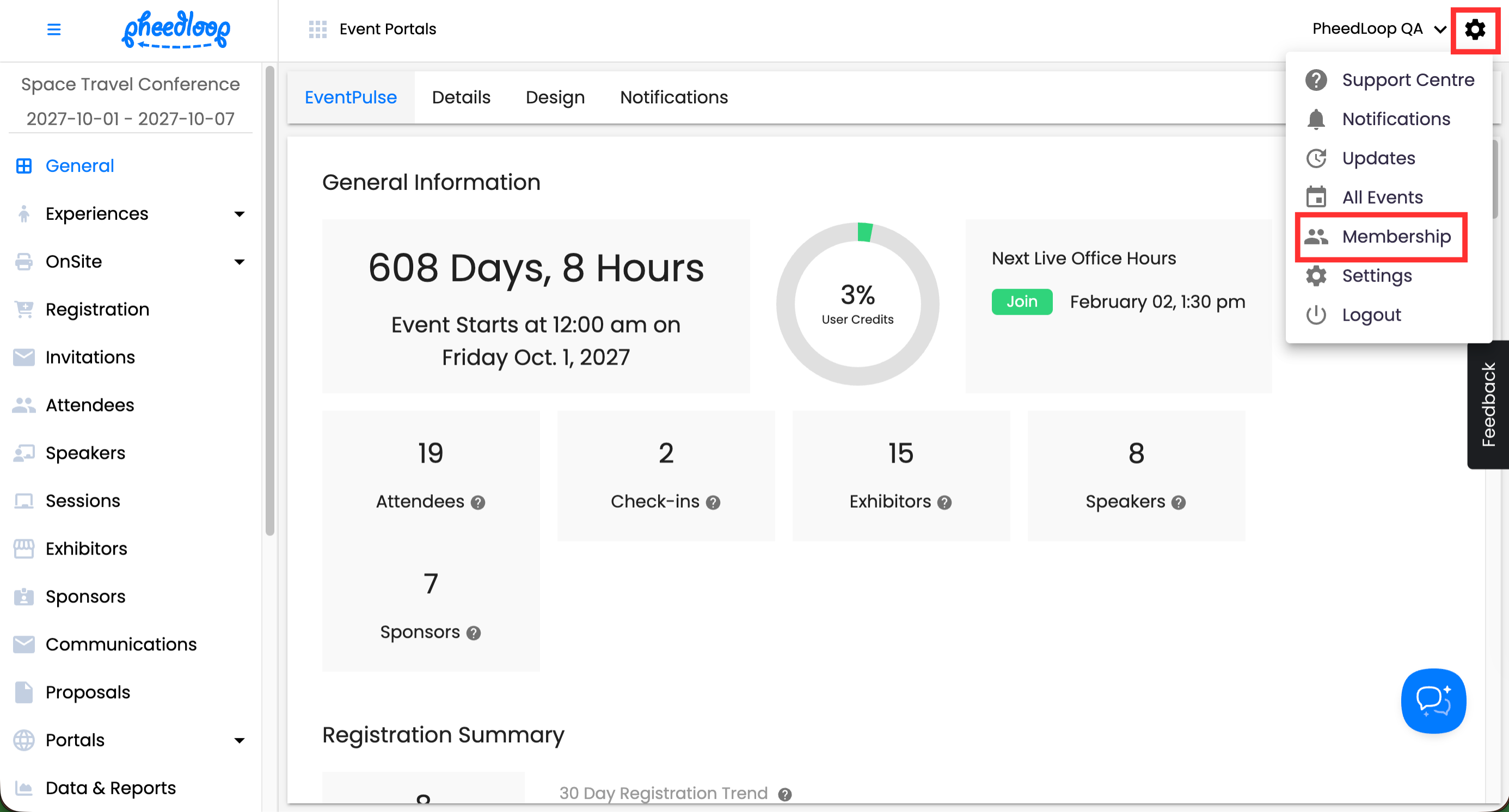
Please note, the Event Report is available in the Membership Dashboard, not the Event Dashboard.
-
From the Event Dashboard, select the gear icon ⚙️ and Membership
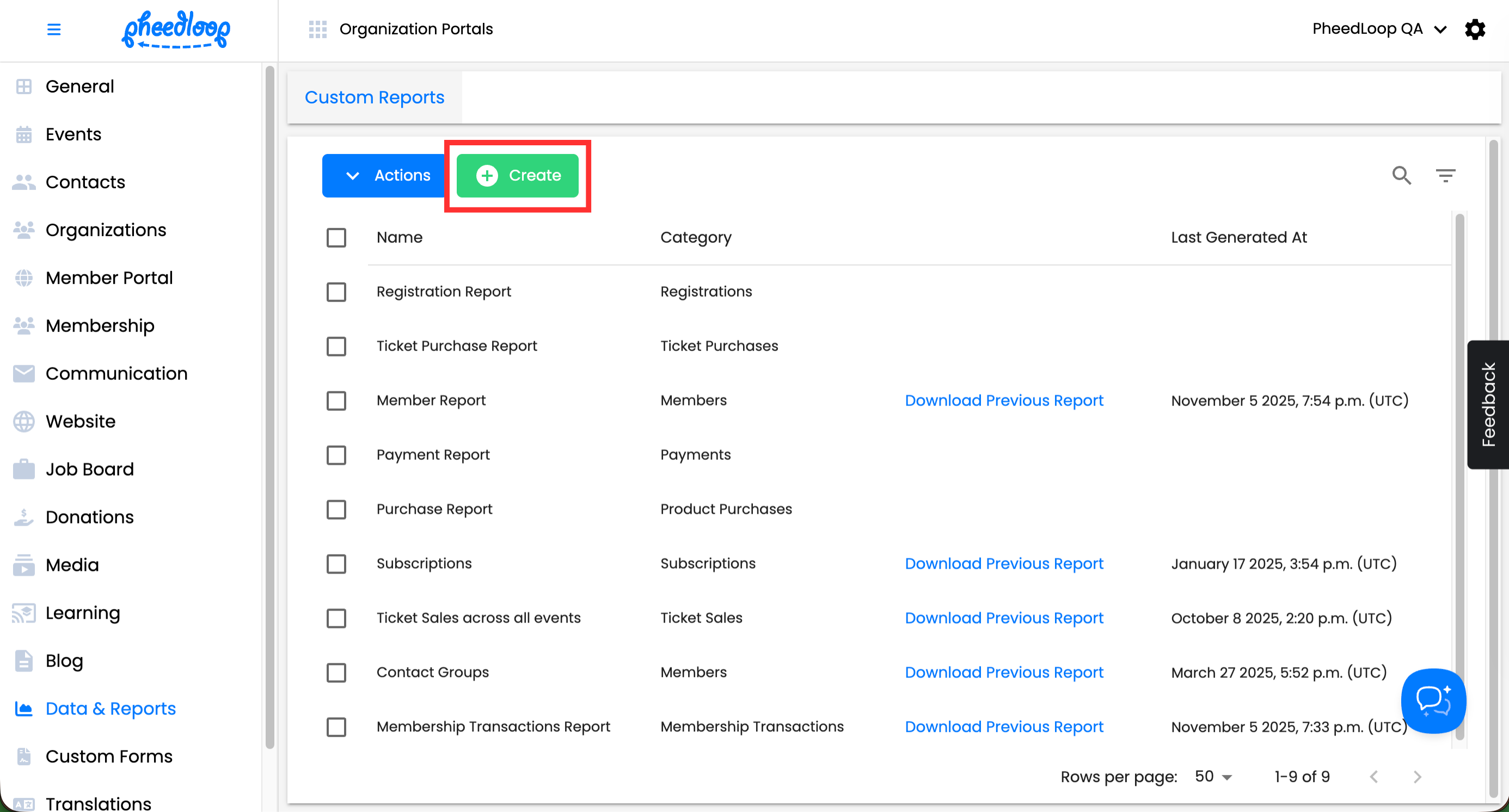
- From the Membership Dashboard, navigate to Data & Reports > Custom Reports
-
Above the Custom Reports table, select Create
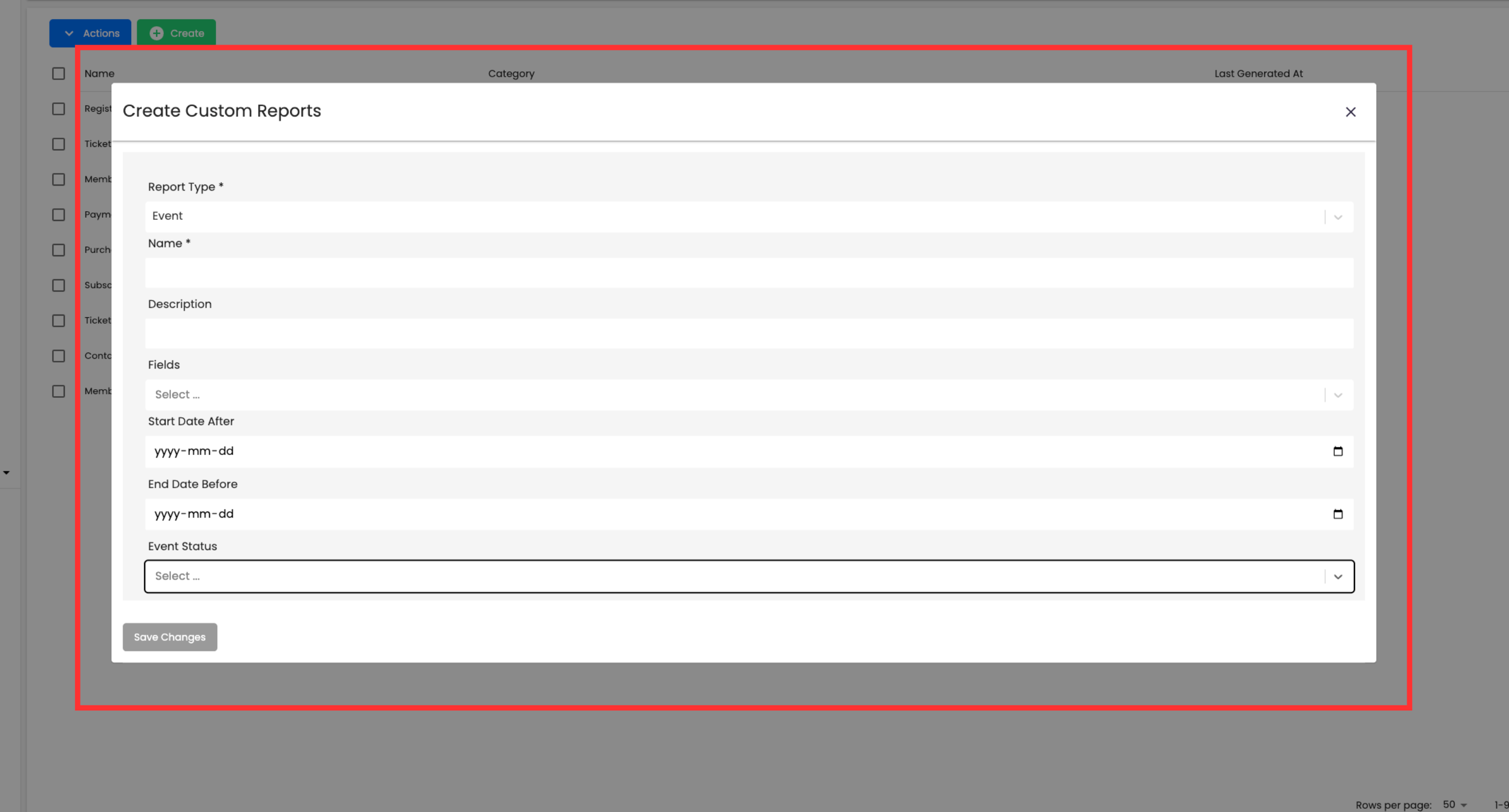
- Under Report Type, select Event
- Under Name, enter a name for your report
- Under Description, enter any additional information you may want to include for the report
- Under Fields, select the data fields you may want for the report
- Under Start Date After, enter a date to restrict results from
- Under End Date Before, enter a date to restrict results to
- Under Event Status, select whether to include Upcoming, Ongoing, or Past events
-
Select Save Changes
Generating the Event Report
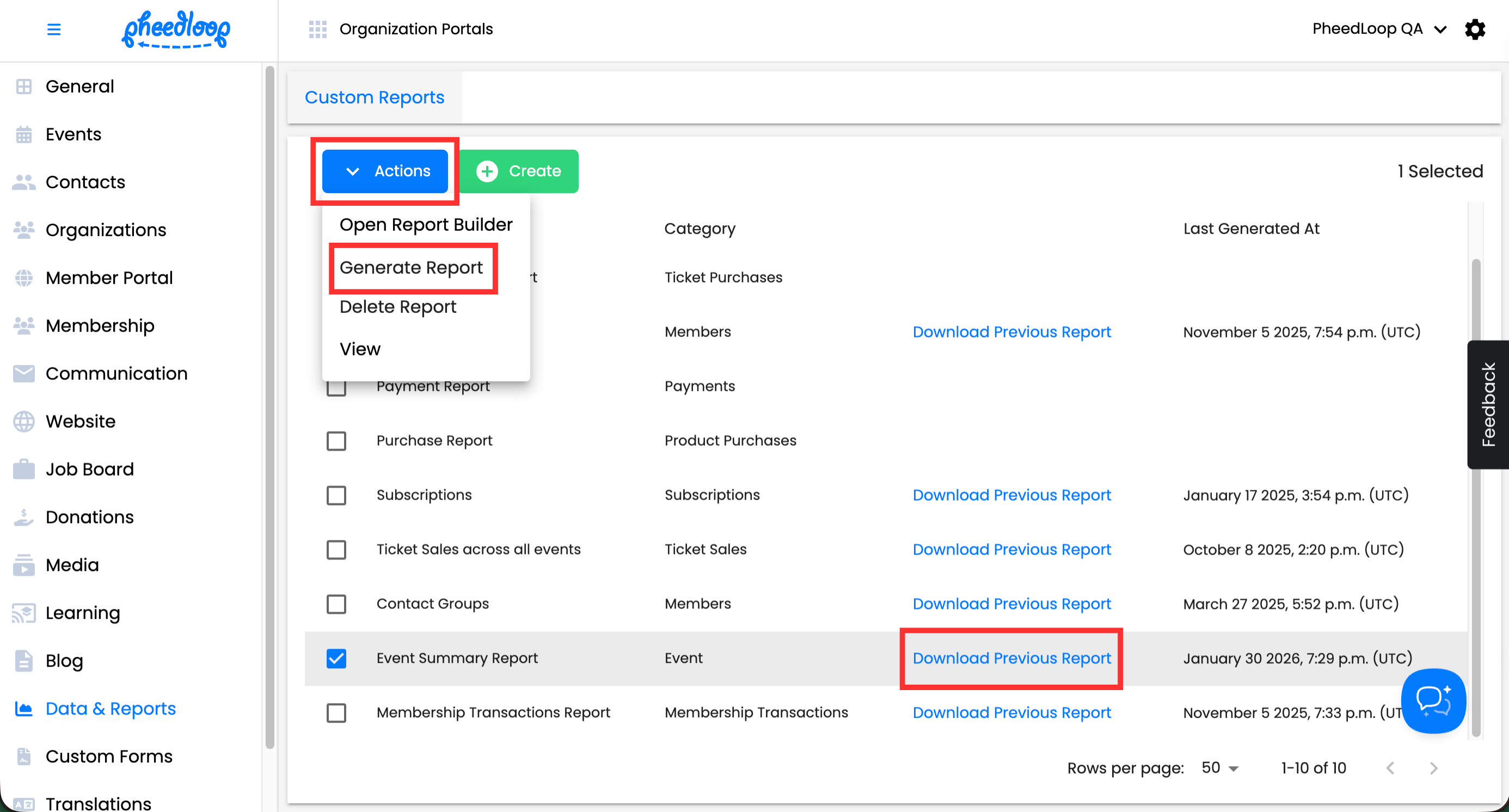
Once the Event report is created, you can generate and export the report as a CSV file.
- Select the Event report from the list
- Above the Custom Reports table, select Actions > Generate Report
-
Refresh the page and select Download Previous Report