How can I use Custom Fields in the Registration Flow?
Please note, Custom Fields have been designed to make the information collection process easier for specific use cases and may not be the best solution for your application. Please review the recommended uses below to determine if Custom Fields are applicable for your organization.
Custom Fields allow organizations to collect and manage additional attendee information beyond the default profile data. They serve as flexible data points that can be tailored to match the specific operational, reporting, or engagement needs of each organization. Custom Fields are also printable within PheedLoop Badge Label designer, meaning information can be collected via Custom Fields and then printed onsite.
Event planners, for example, may want to display attendees’ areas of expertise on their badges. With Custom Fields, this information can be collected during the registration process and printed directly on the badge without requiring additional workarounds or imports.

Contents
- Where do Custom Fields appear on the front end?
- Are Custom Fields necessary for you?
- Creating Custom Fields
- Configuring Custom Fields for the Registration Flow
- Filling out Custom Fields as an Event Admin
- Adding Custom Fields to the Badge Label Designer
Where do Custom Fields appear in the Registration flow?
Custom fields are collected from the registrant only and not the ticket holder. They will appear during the Start step and will not be collected in the Assign step. This means that if you are registering yourself and two other people, you will only be prompted to input a response to the Custom Field for yourself as the registrant.

Custom Fields will also appear in the Event Portal and Member Portal where they can be edited (if permitted by the Event Administrators). These are found under the Profile page for both portals.

Are Custom Fields a good fit for you?
Using Custom Fields is only recommended if your registration flow meets the following criteria:
- Your registration category is NOT using group registration.
- The Custom Field is intended to collect typed responses. Custom Fields cannot formatted as a dropdown or single select prompt. Registrants will type in their response.
- The Custom Field is to be printed on badges onsite, along with other attendee details (i.e., first name, last name, etc.)
- This criterion is optional since not every event needs to make use of PheedLoop's adge Printing system. If you are not intending to print the custom information collected during the registration process (i.e., it is for internal processes only), then Ticket Forms and/or Category Forms listed are likely a better and more flexible option for you.
Creating Custom Fields
Custom Fields are not created from the Event Dashboard. Instead, they are created in the Membership Dashboard.
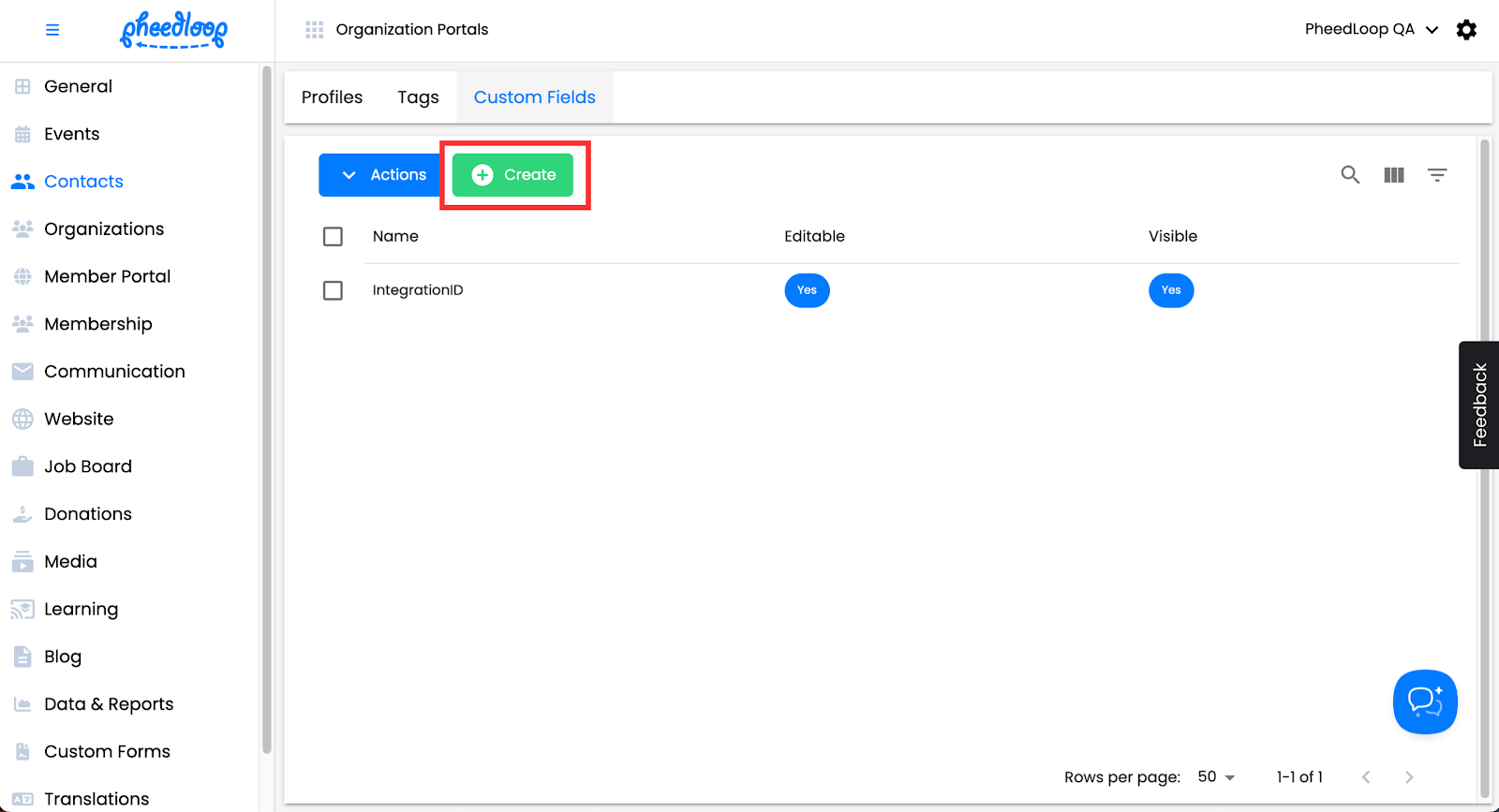
- From the Membership Dashboard, navigate to Contacts > Custom Fields
-
Above the Custom Fields table, select Create
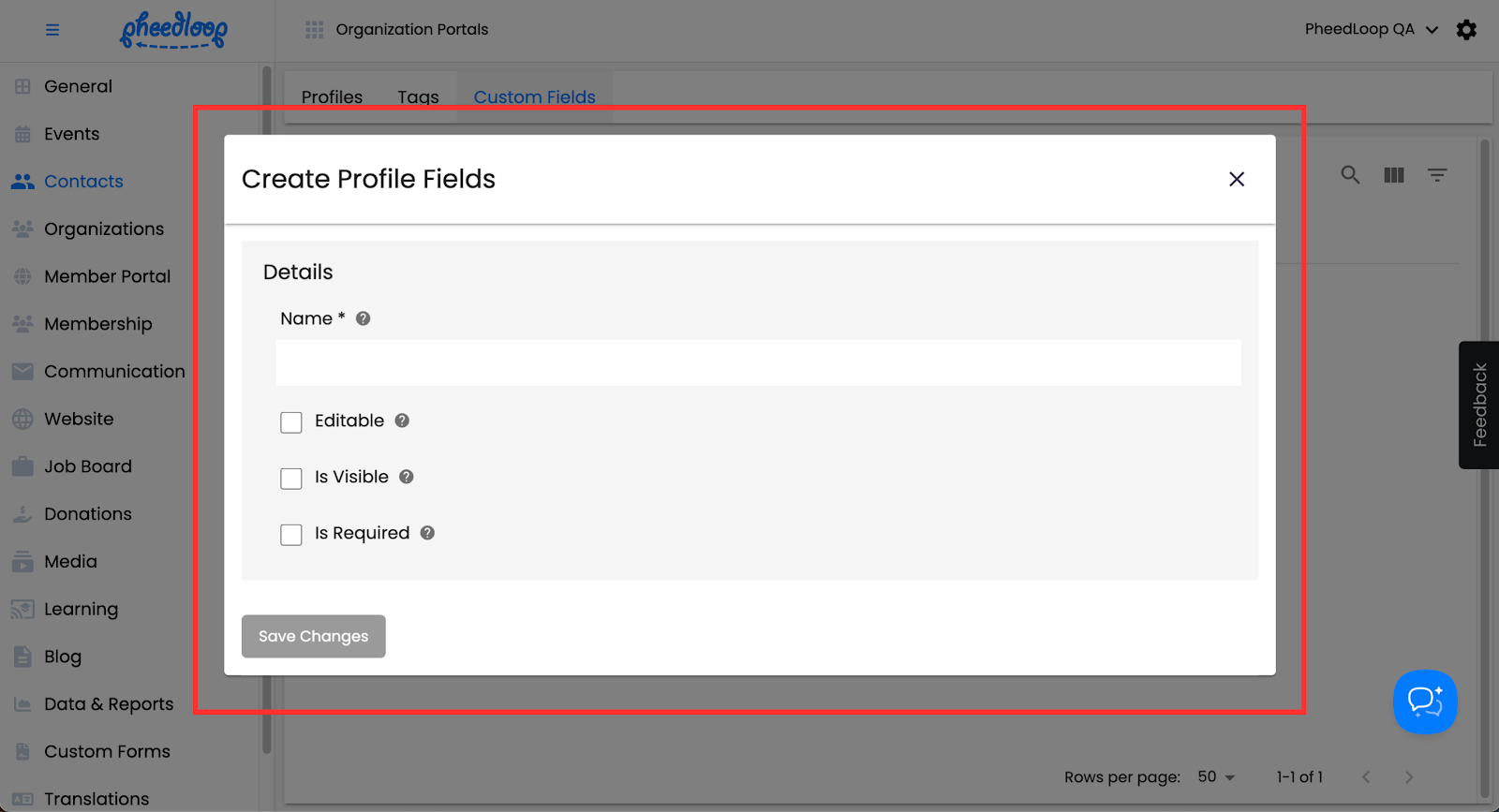
- Fill out the Name field
- Toggle on the Editable checkbox if you want this field to be editable by attendees in the Member Portal (located in the Profile page)
- If you do not check this option, the field will be read-only for attendees.
- Toggle on the Is Visible checkbox if you want this field to be visible to attendees in the member portal
- If you do not check this option, the field will be hidden from attendees.
- Toggle on the Is Required checkbox to make this field required wherever it is collected from attendees, such as during registration or profile updates.
-
Select Save Changes
Configuring Custom Fields for the Registration Flow
Once your Custom Fields are created, you can start using them for your event. To begin, you must first configure your registration categories to accept Custom Fields.
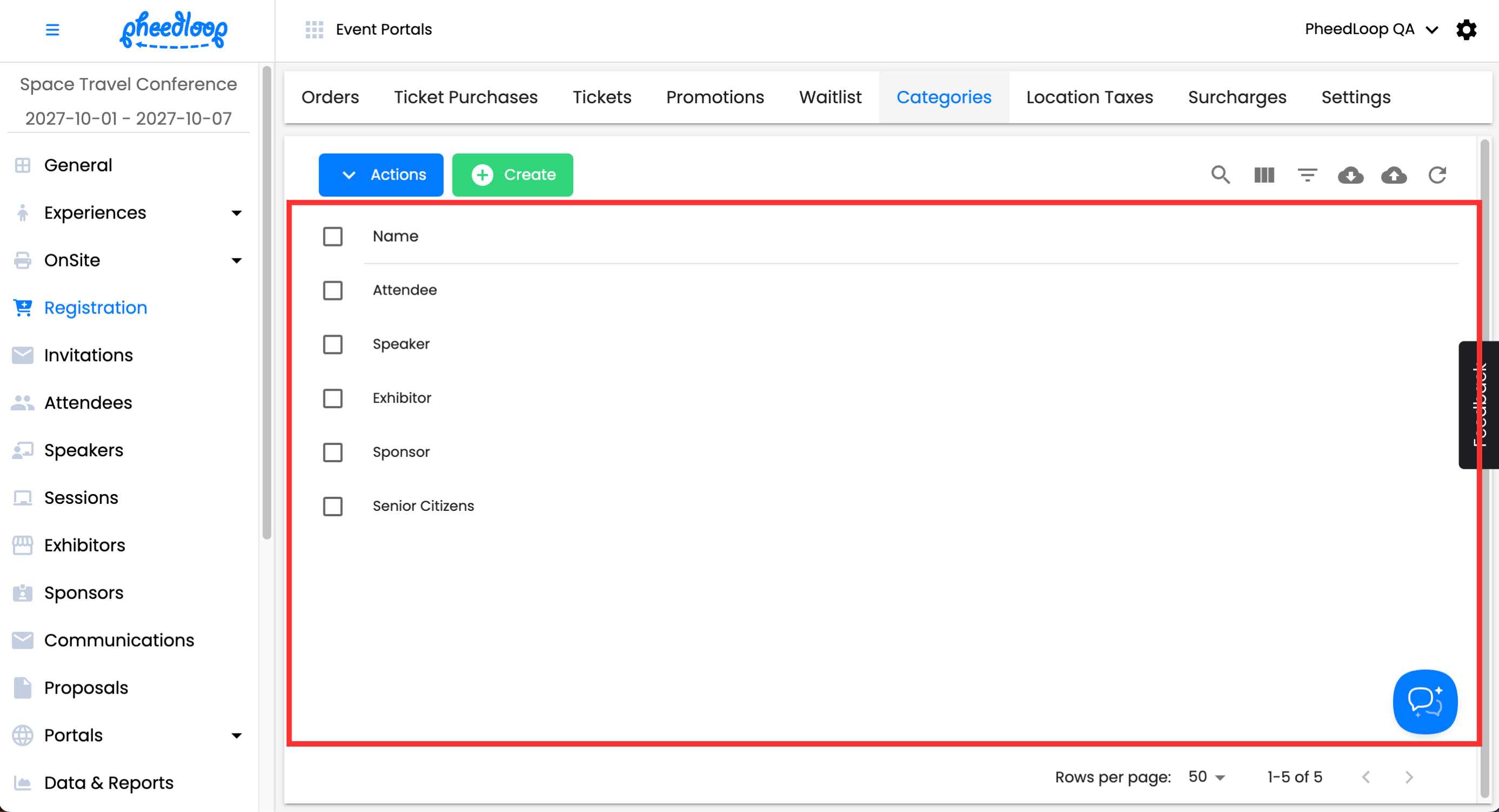
- From the Event Dashboard, navigate to Registration > Categories
-
Select the registration categories that you wish to adjust
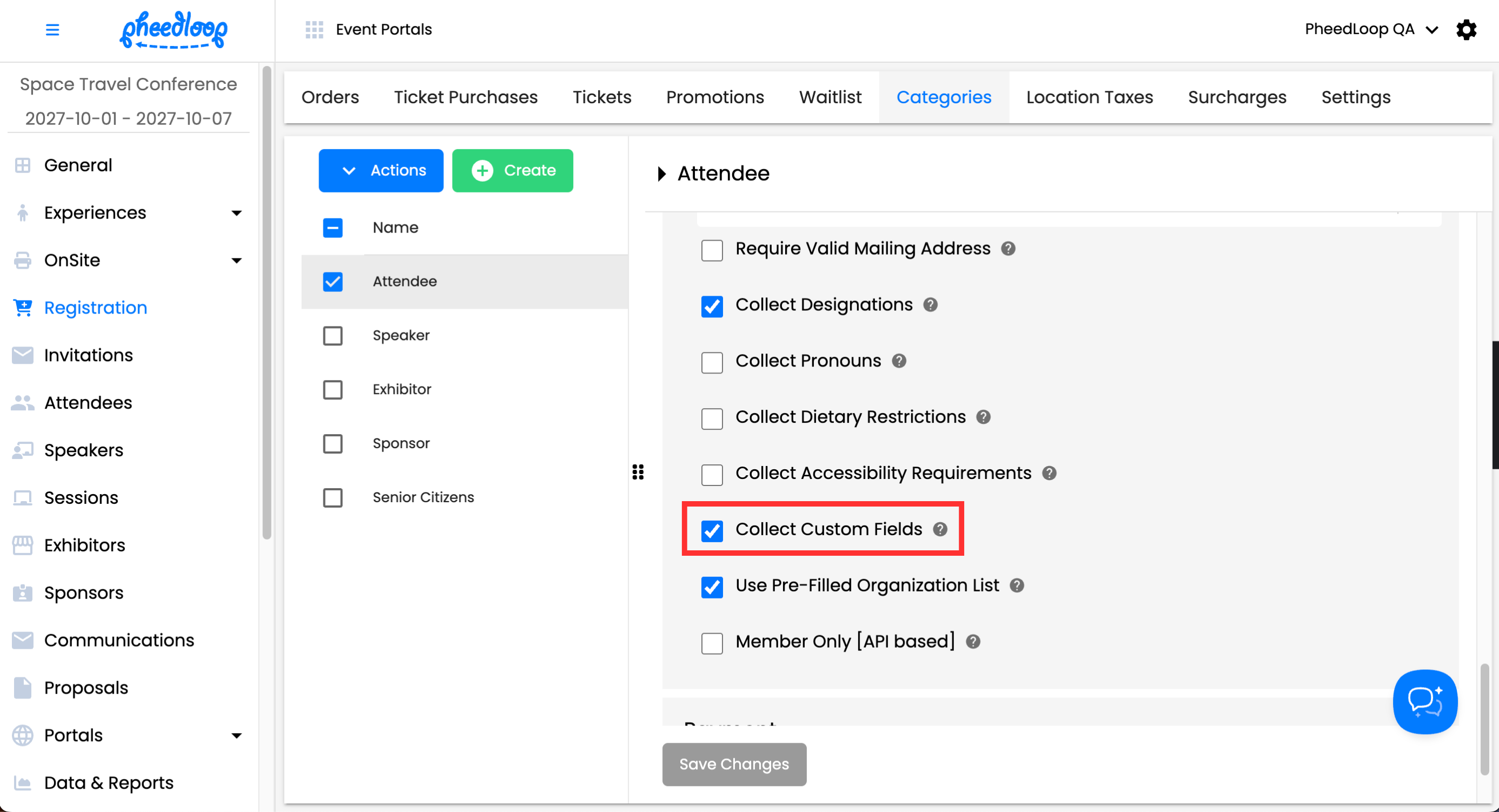
- Scroll down to Details
- Toggle on the Collect Custom Fields checkbox
-
Select Save Changes
Your registration flow will now include Custom Fields as part of the process. Depending on the configuration of your Custom Fields, they may be optional or mandatory to fill out.

Filling out Custom Fields as an Event Admin
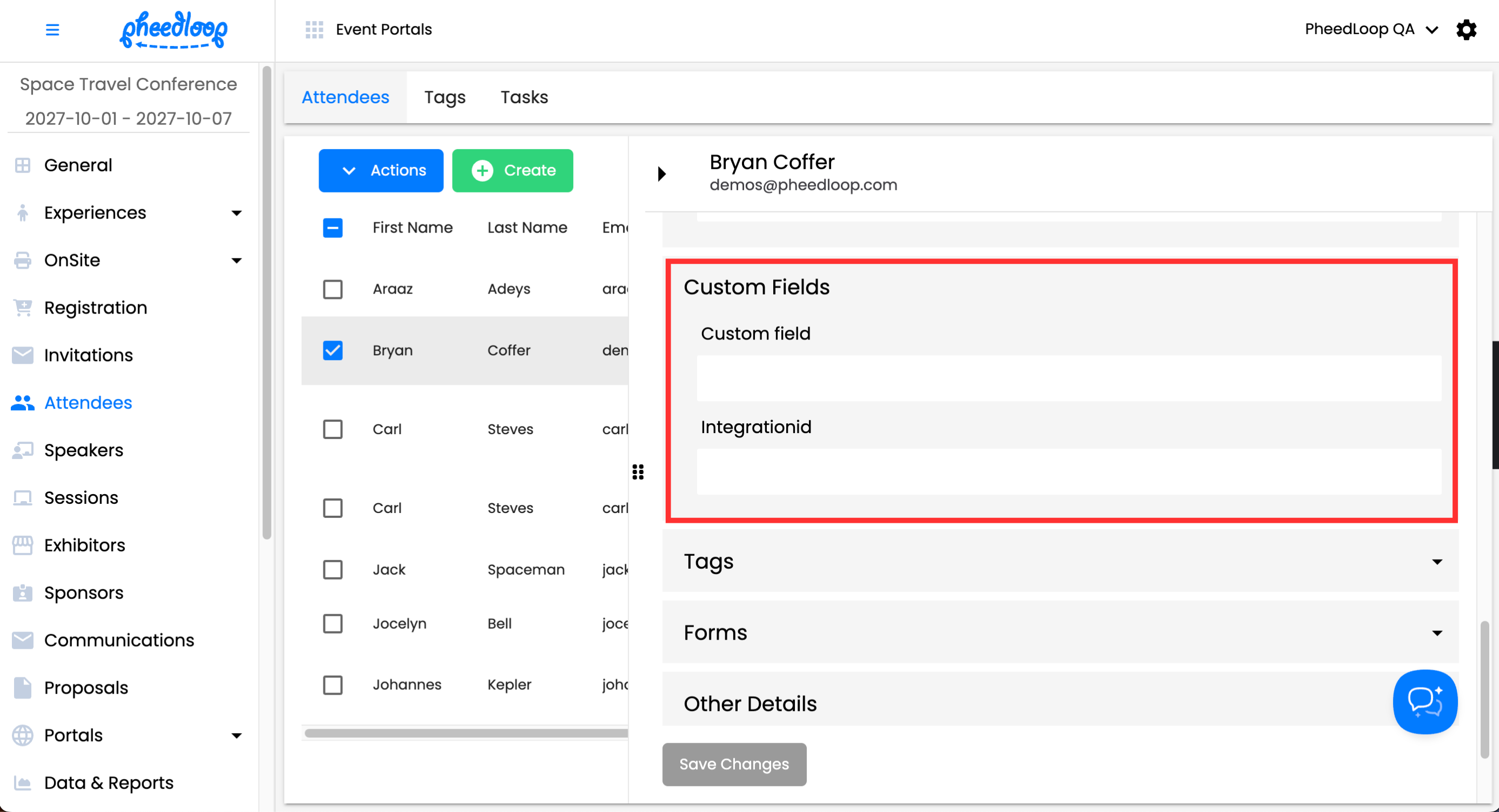
As your registrants complete the registration process and become attendees, you will be able to view and edit their Custom Fields from the Attendees page in the Event Dashboard.
- From the Event Dashboard, navigate to Attendees > Attendees
-
Select the attendee you wish to adjust from the list
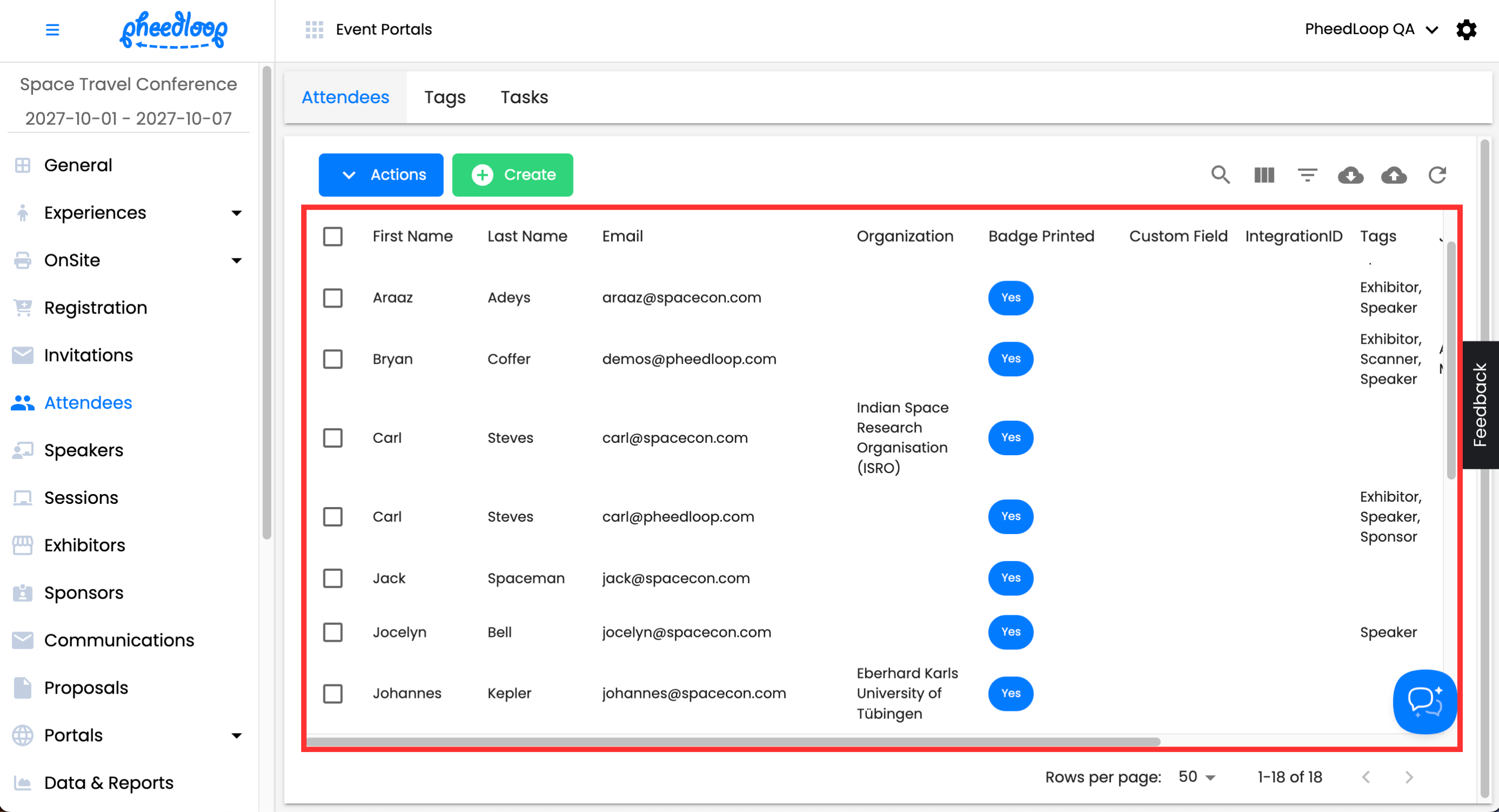
- Scroll down to Custom Fields
- Edit the custom fields as you see fit
-
Select Save Changes
Quick Tip - You are also able to bulk upload or edit custom fields as part of your attendee data. Custom Field information is located at the rightmost columns of the Attendee Upload Template.
Adding Custom Fields to the Badge Label Designer
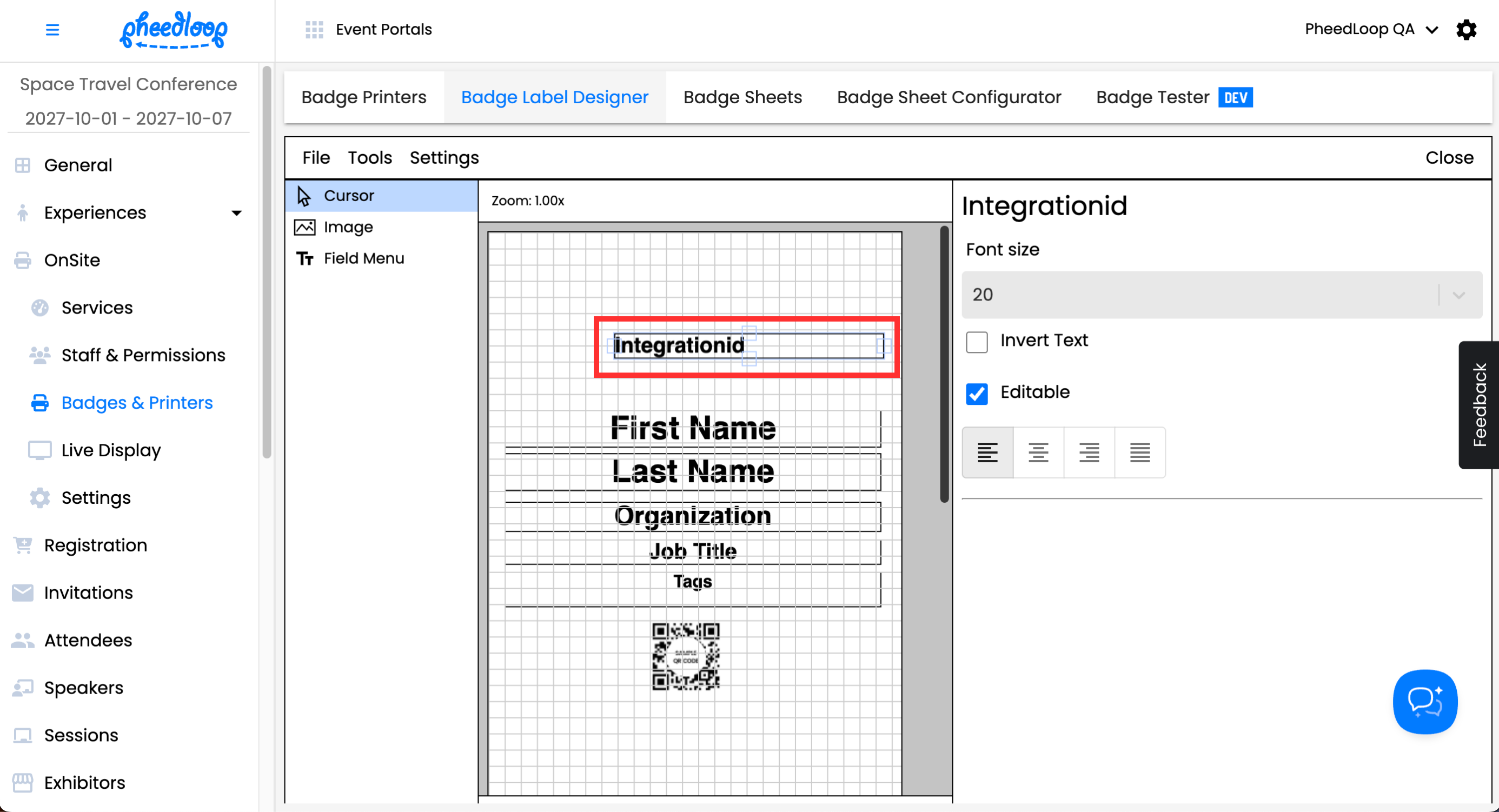
As mentioned in this article, a popular use case for custom fields is for badge printing. Any custom fields included will be printed out along with other attendee information. For example, if someone enters "Data Analysis" as their Custom Field, that value will be printed on their attendee badge. Custom Fields must be added to the badge template for the information to print.
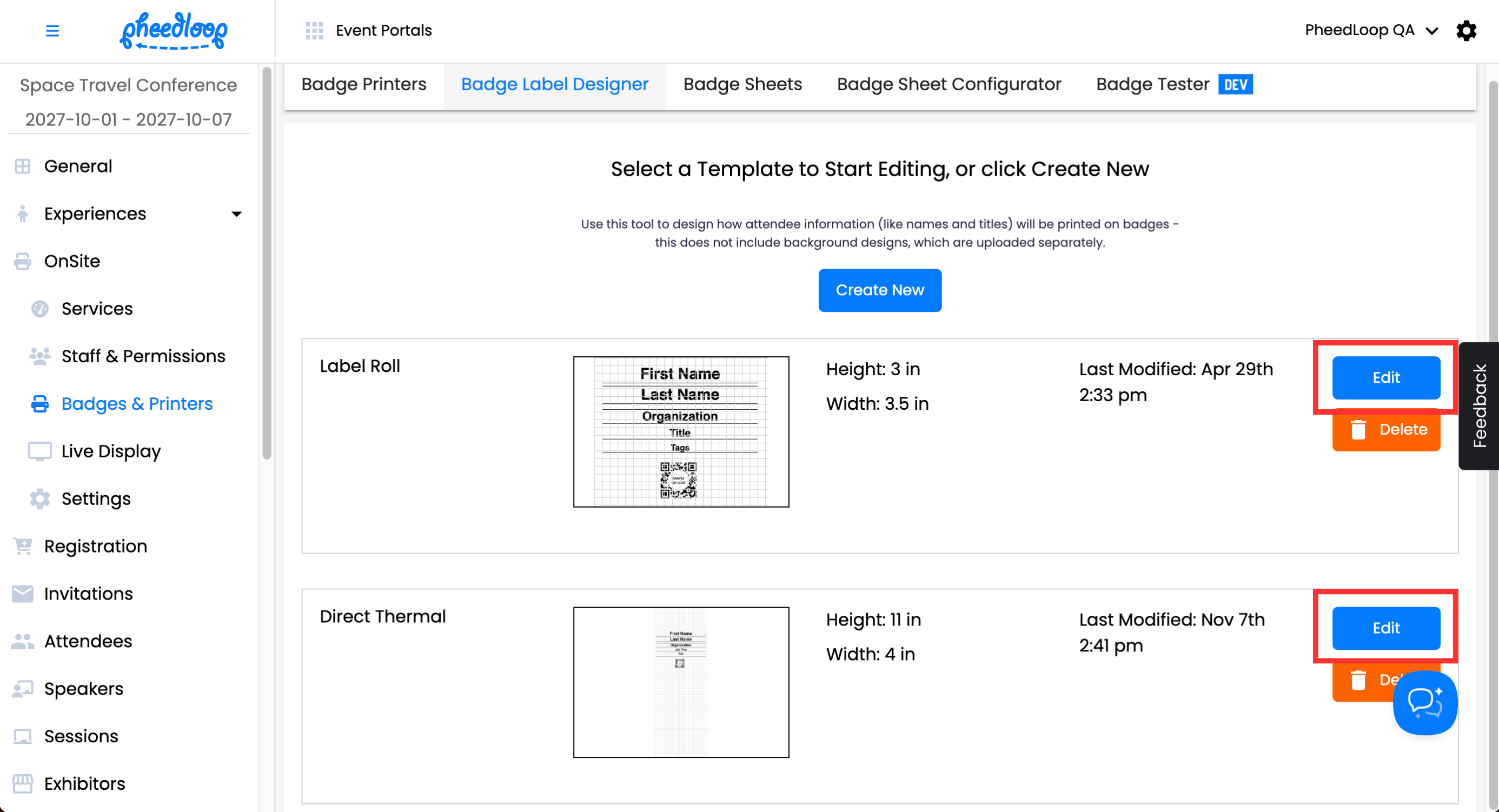
- From the Event Dashboard, navigate to OnSite > Badges & Printers > Badge Label Designer and select Edit for the design you wish to edit
-
If you have not created a badge template, please review our Setting Up Your Badge Label Template for On-site Badge Printing article for instructions
-
-
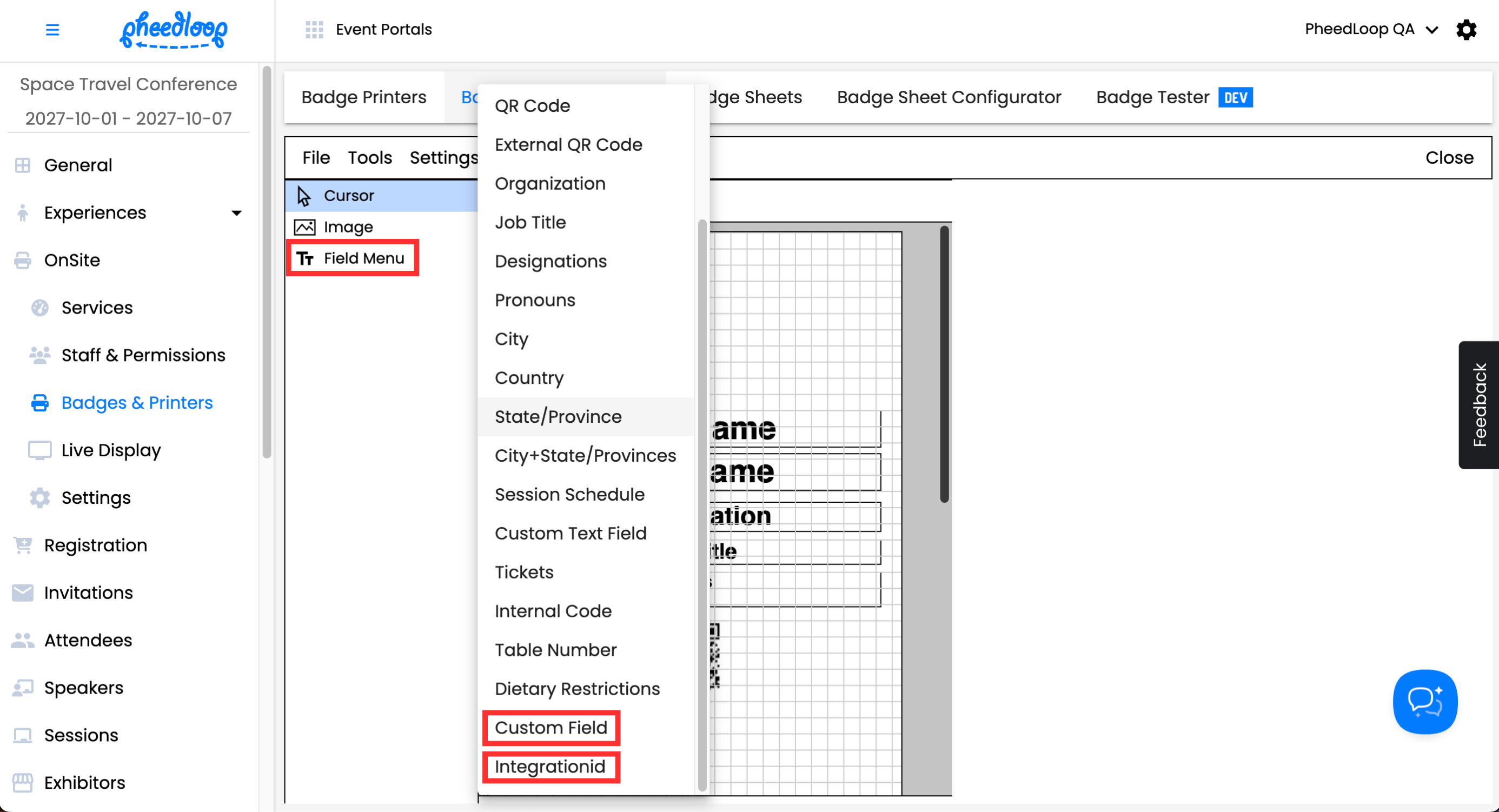
From the left-hand menu, select Field Menu and your custom field at the bottom of the list
-
Place the field in your desired position
- Save your progress by selecting File > Save
For more information on the Badge Label Designer, please refer to our Setting Up Your Badge Label Template for On-site Badge Printing article.